Access the device settings from the app's home view by tapping the gear icon in the top-right corner.
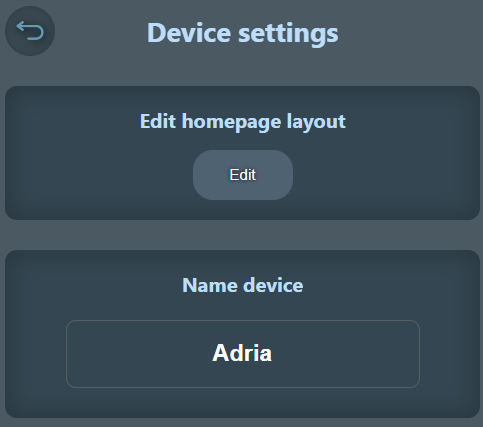
You can edit what is displayed on the home screen by tapping "Edit home screen layout", such as showing only active inputs, outputs, and temperatures and changing their order.
You can also set a device name that is displayed in the app and helps identify the device's purpose. In the example, "Adria" is used when the device is installed in a motorhome.
Device Settings - 2
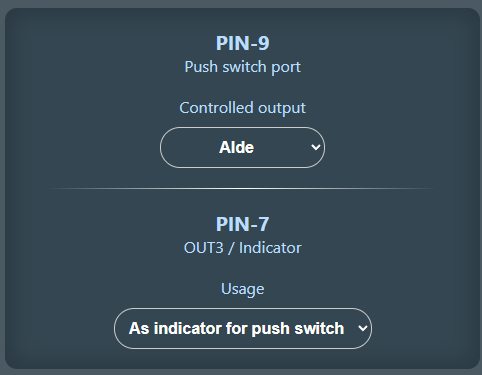
Here you can configure which output (OUT1, OUT2) the Etäbox PIN-9 push-button port controls when PIN-9 is momentarily connected to ground (active-low). See a wiring example for this on the Installation page.
You can also configure the behavior of PIN-7, which works either as an indicator for OUT1 or OUT2 (supplying the operating voltage +12V/+24V when OUT1 or OUT2 is switched on), or you can use PIN-7 as a third output (OUT3), similar to OUT1 and OUT2.
Device Settings - 3
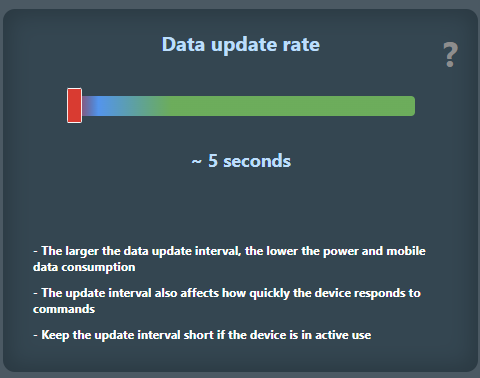
Here you can set the Etäbox data update interval, which determines how often Etäbox sends data to the app. The default is 5 seconds, but you can change this between 5 seconds and 4 minutes. A shorter update interval means faster response, but it may also consume more battery and data. If you use a prepaid SIM card, you can save credit by setting a longer update interval.
Device Settings - 4
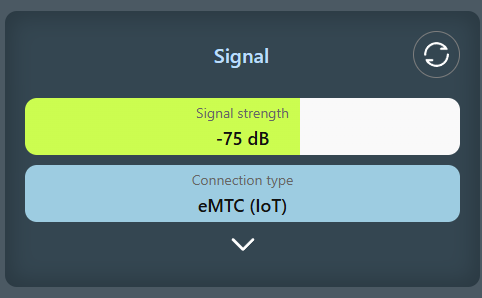
Here you can see the Etäbox network connection signal strength and connection type, which helps you assess the connection quality and potential interference.
Device Settings - 5
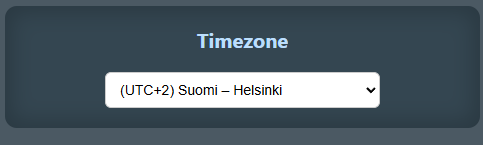
Here you can select the timezone for the Etäbox, which ensures the correct time is displayed in the app so that schedules trigger correctly locally wherever you are.
For example, if you use the Etäbox in a motorhome that travels through different countries and time zones, you can set the timezone to match the current location so you see the correct time in the app and schedules trigger at the correct local time.